Monday, July 8, 2013

Nokia Lumia 521 Review & Info

Hello World..!!

ImageIf you thought the Nokia Lumia 520 was good, boy are you going to have a great time with the Nokia Lumia 521. Essentially the same device as you’ll be getting internationally, this T-Mobile iteration of the entry-level Windows Phone 8 device brings the same package (with slightly different radio connections and a few extra apps) to the USA, here with the same bright white back cover as we saw across the sea (one of three, as it were).

IMG_8335wtmk

Hardware

With the Nokia Lumia 521 you’re rolling with a 4-inch display (running at WVGA) which, if you’re using anything sharper at the moment, will be just a bit more pixely than you’ll want to live with. This machine is, instead, made for those users upgradingfeature phones – and it’ll do a fine job of it.

IMG_8337wtmk

The handset measures in at 4.9 x 2.5 x 0.4 inches and weighs just 4.4 ounces – it’s lighter than it looks. You’ll connect to this machine with a microUSB cord (included in the box) and a microSIM for data, and both the back cover and the battery within are removable. There’s also a microSD card slot under the hood for an additional 32GB of space if you do so desire – you may want to pick up a microSD card when you purchase the smartphone since the 521 works with just 8GB of internal storage.

IMG_8338wtmk

Inside you’ve got a Qualcomm Snapdragon S4 dual-core processor at 1GHz paired with 512MB of RAM. Again, this is meant to be an upgrade for the feature phone crowd and not a battle-ready beast for the top-tier entrants in the Windows Phone 8 world. That said, this machine is swift as much of the Windows Phone 8 crowd simply because the processor paired with this screen – small and low-res as it is – makes for hot-tapping and access to the basic collection of apps available to the whole Windows Phone 8 smartphone collection.

IMG_8336wtmk

You won’t be set up for future implementation of T-Mobile’s LTE network, instead kicking it up to today’s fastest data speedsthe network at HSPA+ 21. We’ll be bringing you “top speed” results as soon as we can kick out speeds above the general average – for now you’ll take comfort in knowing we’ve not have a dropped signal anywhere inside the metro area in Minneapolis / Saint Paul, Minnesota.

The back of this machine is replaceable – compatible with the international edition of the handset as well, so finding even 3rd-party offerings in the wild-and-wacky case-making environment will work. Or SHOULD work – always be cautions if you’re buying 3rd party gear. Nokia brings the heat with this machine in white (seen here) as well as yellow, blue, and red.

Software

It should be made clear that this device brings Nokia’s unique collection of Windows Phone apps to the show – the same as each other Lumia both here in the USA and overseas. While you’ll get a limited number of these on the device right out of the box, you’ll have Nokia’s app portals to keep you busy.

IMG_8340wtmk

At this point in history it’s difficult to find a smartphone running Windows Phone (Windows Phone 8 and forward, that is), that isn’t able to work with every app in Microsoft’s official app store. Nokia also provides such unique offerings (available to Lumia devices only) as Nokia Music, HERE Maps, HERE Drive, and HERE Transit. It’sHERE, you could say.

IMG_8345wtmk

All except – notably – app abilities such as the augmented reality bits of City Lens (as seen with the Nokia Lumia 920 demo we gotthe way back in September of 2012, courtesy of Nokia) inside HERE Maps. This doesn’t exist on this machine due to the lack of a digital compass in the 521. With A-GPS and Glonass you’ve still got turn-by-turn navigation throughout the USA

Camera

While there’s no front-facing camera on this machine, the back-facing 5-megapixel shooter is more than enough for the standard social networking sharing and general photo-taking activities you’ll be inevitably taking part in.

Battery

While Nokia rates this device at 7.5 hours talk time with standby at 12.5 days, we’ve found the 1430mAh battery to be standing up to a full days’ standard use without issue. If you’re a heavy user, on the other hand, expect to knock this battery out in a matter of hours – especially if you’re streaming videosomethingT-Mobile TV (also built in to the device, courtesy of the carrier.)

IMG_8339wtmk

Wrap-Up

The Nokia Lumia 521 isn’t the nicest Windows Phone 8 device on the market – and it’s certainly not the hottest Nokia machine out today – but it’s not meant to be. Working to be the cost-cutting entry level to the Windows Phone 8 universe with the good ship Nokia – that’s the aim. That’s what this machine will do, too – expect quite a few upgrades to higher-powered Lumia devices once the 521 is paid for in full by users on T-Mobile.

Source:- http://www.techgig.com

Sunday, June 9, 2013

iTunes Or Apple ID without Credit Card 2013

Hello World..!! Note

1. Sign out of current Apple ID if you are sign-in to one.

2. Go to App Store and select a free app

3. Tap INSTALL APP

4. Create New Apple ID

5. Confirm Your Country

6. Agree with Terms and Conditions

7. Fill in your new Apple ID and Password (you must create a new Apple ID; don't use your old Apple ID)

8. Create and answer your secret question

9. Select NONE for Payment Method

10. Fill in Billing Address

11. Submit application for new Apple ID

12. Wait for verification email

13. When email arrive, verify your account

14. Start downloading your free apps Thumbs up 


Create Apple Id

Run Windows Game on Mac without Boot Camp

Hello World..!!

How To Run Almost Any Windows Game On Your Mac Without Boot Camp Or Parallels Using Wine [Feature]

PC games: they can be the bane of a Mac gamer’s existence. The Mac may be a better computer than a windows box, but even so, most games don’t support OS X. Even on Steam, the leader in cross-platform computer game support, most games run only on Windows. The reasons for this are manifold, including mid-level integrated graphics chips and less customizable hardware, but it shouldn’t be this disparate.

There are a few options for running those PC games on Macs, of course. There’s Boot Camp, which allows you to run a full copy of Windows right on your Intel-based Mac, but it requires a reboot to switch between OS X and Windows environments, which can be tedious. There are emulators you can buy, like Parallels and VMWare Fusion, but these never quite pan out, in my experience, as they always seem to be fraught with issues when connecting peripherals, mice, etc. They also cost a bit, and require a full copy of Windows, which will run you some money, too.

I just want a way to play a game that is created for the Windows operating system on my Mac, without a reboot, without buying a new program or new copy of an operating system I really don’t want to use.

Luckily, there’s a way to do just that.


What Is Wine?

How To Run Almost Any Windows Game On Your Mac Without Boot Camp Or Parallels Using Wine [Feature]Seriously, that’s the self-referencing recursive acronym for Wine. Get it? So clever, those open source folks.

Wine actually runs as more of a translator between the instructions in the PC program and the Mac operating system. It basically fools Windows into thinking they are running in a Windows environment, without actually emulating that environment (and taking the same performance hit) like Parallels does. Wine has the benefit of a large, open-source community for support as well, which means it will continue to get better and improve compatibility for a lot of games along the way.

Speaking of compatibility, not all PC games are going to work with Wine. To find out if the game you want to try to install on your Mac via Wine will work, head over to the Wine HQ website, where they have an entire database full of the games and applications that will work with Wine. They even have levels of how well these work with Wine, including Platinum, Gold, and Silver levels of compatibility.

I chose Guild Wars: it’s a game that has gone free to play lately, is Windows-only for now, and it is listed in the Platinum compatibility list on the Wine HQ site. All the examples from here on out will be from my own experience installing Wine to play Guild Wars on my Mac Mini 2011.

Once you head over there and pick a game, you’ll be ready to make sure you have what you need to run Wine.


What You’ll Need

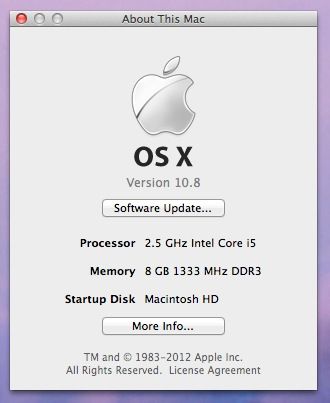
How To Run Almost Any Windows Game On Your Mac Without Boot Camp Or Parallels Using Wine [Feature]First up, you’re gonna need an Intel Mac. If you’re still running a Power-PC Mac, a) it’s time to upgrade and b) this isn’t going to work. To find out what kind of Mac you have, click on the Apple menu in the upper left corner of your screen, choose About This Mac, and it will tell you. Honestly, though, if you don’t know what kind of Mac you’re running, you might have a bit of trouble with the following instructions, which assume you have access to your admin account and password, can install XCode, and have the latest Java Development package (it comes as default with Mac OS X 10.7 and up).

You’ll also need the X11 app, which used to be a standard install app starting in OS X 10.5, but which has recently been removed from OS X 10.8 Mountain Lion. If you’re running 10.8, head over to the XQuartz web page to download an open source version of X11 for Mountain Lion. Install it as you would any other package file.

You’ll also need to be comfortable using the command line via the Terminal app, an internet connection, and a couple of hours to work through all the steps involved. It’s not rocket science, but there is a certain level of patience that will be needed.


Install XCode & MacPorts

How To Run Almost Any Windows Game On Your Mac Without Boot Camp Or Parallels Using Wine [Feature]
If you’re running Mac OS X 10.6 Snow Leopard above, XCode is available in the Mac App Store. If you’re still using OS X 10.5 Leopard (why?), you’ll need to install Xcode from one of the System Install DVDs that came with your Mac. I’m going to assume you’re using either Lion or Mountain Lion for the rest of this article, and just point you to the Mac App Store. Be warned, though: XCode is a 1.6GB  download, so it may take a while depending on your internet connection speed.

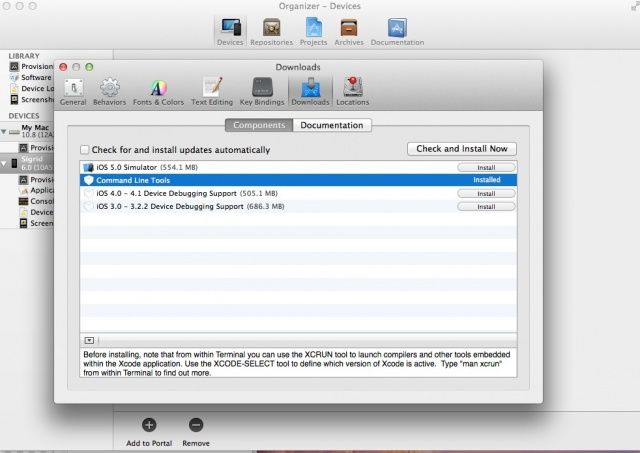
Once XCode is downloaded and installed, launch it and go to the Preferences. Click on the Downloadstab and then install the “Command Line Tools.” If you’re running OS X 10.8 Mountain Lion, copy and paste the following into a Terminal session (Terminal can be found in Applications > Utilities) to avoid some heartache later:

sudo xcodebuild -license

You’ll need to type in your admin password here, as well.

Then quit Terminal, and head to the MacPorts website. Once there, click on the link for your particular version of OS X. I grabbed MacPorts for OS X Mountain Lion, but there are links for Lion and Snow Leopard as well. Launch the package installer and follow the directions, including entering your admin password again. Next, you’ll need to configure MacPorts using the command line, so launch Terminal.

Copy and paste the following into your Terminal window (you’ll need to type in your password again after you hit enter on the keyboard):

echo export PATH=/opt/local/bin:/opt/local/sbin:\$PATH$'\n'export MANPATH=/opt/local/man:\$MANPATH | sudo tee -a /etc/profile

After that process finishes, copy and paste the next line:

if [ `sysctl -n hw.cpu64bit_capable` -eq 1 ] ; then echo "+universal" | sudo tee -a /opt/local/etc/macports/variants.conf; else echo "not 64bit capable"; fi

If your Mac is 64-bit capable, you’ll get +universal as a result. If not, you’ll get not 64 bit capable. Either result is fine; MacPorts is just figuring out what to do for your particular machine. computers should show +universal if you have a 64Bit Mac. If not, it will show “not 64bit capable” which is fine – it’s just showing MacPorts what kind of Mac you have.

Close the Terminal window, and open a new one.


Install Wine

How To Run Almost Any Windows Game On Your Mac Without Boot Camp Or Parallels Using Wine [Feature]
Copy and paste the following text into your newly opened Terminal window:

sudo port install wine

MacPorts will start chugging away, finding all the magic source code that is required to build up a functioning copy of Wine for your specific Macintosh. This will probably take some time, so go get a soda while you wait. Unless it’s later and you’re of drinking age in your local area; in which case, grab a beer or two. This could be a while.


Download and Install Your Game

How To Run Almost Any Windows Game On Your Mac Without Boot Camp Or Parallels Using Wine [Feature]I headed over to the GuildWars website and downloaded the latest .exe file there to install on my Mac. Your game will probably be on another website, or be on CD. Head there, and download the file, making note of the place you save the file.

Head back into Terminal, and type cd /locationOfDownloadedFile, where that last bit is actually the place you put your game file. I put mine in ~/Downloads/, but your download location will be unique to you. If in doubt, you can drag the Finder window where your file is located on top of Terminal to instantly get the correct path.

Once you’re in the proper directory in Terminal, run the installer via your Wine install by typing in the following command:

wine INSTALLER.exe

Of course, the INSTALLER bit will be different for you. For GuildWars, the setup file is called GwSetup.exe. So, I typed in:

cd ~/Downloads/GwSetup.exe
then
wine GwSetup.exe

X11 (you did download XQuartz and install it if you’re running Mountain Lion, right?) then opens up, and you’ll see a standard Windows installer, just like magic. Click on through the installation prompts, and boom, you’re ready to go.


Run, Game, Run

Now, to get your game up and actually running, you’ll need to launch Terminal one final time. Type the following into Terminal to get to your Program Files folder:

cd ~/.wine/drive_c/Program\ Files/

Then type

ls

This should show you the name of the game you installed; head into the folder with a cd command. In that game folder should (finally) be a file that starts the game, ending in .exe – this is your game file. Type the following into Terminal to get it running:

wine PROGRAM.exe

Be sure to replace PROGRAM with your game startup file. You should now be playing that PC game right on your Mac, sans emulation. Whoopee! Let us know what game you got to run this way in the comments. Thumbs up

Sunday, May 26, 2013

Reduce PDF File Size Tips

Hello Friends..!!

First Method: Reduce File Size in Adobe Acrobat
  1. Launch Adobe Acrobat. Open the PDF file you wish to reduce.

Use the SaveAs command. From the File menu, scroll to Save As... and then select "Reduced Size PDF."

  1. Select the appropriate version compatibility for your requirements.

    • Note: limiting compatibility to the latest versions of Acrobat or Adobe Reader can further reduce file size.
  2. Save multiple files. If you are going to apply the same settings to multiple files, click Apply To Multiple, then add the files.

    • In the Output Options dialog box, specify your folder and filename preferences.


Second Method: Compress pdf file size with smallpdf online tool
  1. Use Smallpdf.com. It is a small online tool that doesn't require any download and compresses your file in seconds.

  2. Go to http://smallpdf.com./

  3. Drag and drop your file into the large box.

  4. Wait until the file is uploaded and compressed.

  5. Download the file. Done.


Third Method: Reducing File Size in Acrobat with PDF Optimizer
  1. Use PDF Optimizer. PDF Optimizer provides finer control for reducing the size of PDF files. In most cases, the default settings are appropriate for maximum efficiency—saving space by removing embedded fonts, compressing images, and removing items from the file that are no longer needed.

  2. Launch Adobe Acrobat. Open the PDF file you wish to reduce.

  3. Save as optimized. From the File menu choose Save As... and then Optimized PDF.

  4. Adjust your settings. Leave as default, or fine-tune your settings as needed.

  5. Save your file.


Fourth Method: Macintosh Preview
  1. Launch Preview. From the Open menu, select the file you wish to reduce.

  2. Export the file. From the File menu, select Export

  3. Set export options. Click the Quartz Filter menu, and select "Reduce File Size."

  4. Save. Select your desired location, then click Save. Your file will be saved in a much-reduced size (see example below).


Fifth Method PrimoPDF
  1. Install PrimoPDF. If you do not have it installed already, download for free at http://www.primopdf.com/ PrimoPDF allows you to print to PDF files right from your browser. Once installed, when you print a page you will have the option to print using PrimoPDF, which will save the file as a PDF.

  2. Open your PDF. Open up the desired PDF file using any application that reads PDF files.

  3. Print the file. Click the "File" menu, then choose "Print," and select PrimoPDF as your printing device.

  4. Select "Properties." Change the downsampling options as required.

  5. Save the file to your desired location.


Sixth Method: Using Windows Compression
  1. Locate your target file. When found, right-click on the PDF file and select "Send To."

  2. Select Compressed (zipped) folder. The file will be a compressed ZIP file (.zip), rather than a PDF file.


Seventh Method: Shrinking Images
  1. Using a PDF editor program, resize your images in your document to make them smaller. If you're using large files to begin with, try resizing the images before inputting them into the PDF. This will help reduce the file size and will sometimes make the images more proportional.


Eighth Method: Mac Export as JPG and Print to PDF in Preview
  1. Open the PDF in Preview.

  2. Select Export, select JPEG, and save the file.

  3. Open the JPG in Preview and Print to PDF. There will be significant reduction in size (and a bit in quality too); the method is only useful for large image PDF files such as maps.


Tips

  • Compression programs like WinRAR and 7zip give you the option to compress files even further, thus making the file size even smaller than the standard compression allowed in Windows or Mac.
  • You can also use other PDF editing programs such as Nitro PDF Professional or Foxit Reader rather than Adobe Acrobat to reduce the file size by using "Save As."


Warnings

  • Adobe Acrobat is not the same thing as Adobe Reader. Adobe Acrobat is a program you must pay for. If you don't have it or don't want to purchase it, choose one of the other methods listed.

SOURCE:- http://www.wikihow.com

Friday, May 10, 2013

Windows 8 Phone Tips

Hello World..!!

How to Customize your Start Screen

You can change the size of tiles by holding your finger on them to activate edit mode. You can drag it around and tap the arrow at the bottom right to change the size. You can change the background color in Settings > Theme. Be sure to check out our recommended ways to customize your Start Screen, as well.

How to use your Unified inbox

With WP8 you have the ability to merge your email accounts into one manageable inbox. Go to your Mail app and tap the ellipses in the lower right hand corner and choose link inboxes. You can choose to link as many as you like, so it’s possible to merge a bunch and still keep some separate. You can always unlink them again.

How to use built-in Shazam-clone ‘Name that tune’

You don’t need the Shazam app to recognize a tune you like. Windows Phone 8 has music recognition built-in. All you have to do is tap Search and then choose the music icon (it’s a musical note) and it will listen for a few seconds and then tell you what song is playing and provide you with a link to buy it in the Windows Phone Store.
windowsph8-start-screens

How to enable Kids Corner

There’s no need to install a parental control app because WP8 has Kid’s Corner. You’ll find the option in the Settings menu and it allows you to dictate exactly what content is available when Kid’s Corner is activated. It allows you to give your little angel your smartphone without fear that they’ll send a text or email, phone someone, or do something else crazy.

How to conserve battery life

If your battery is getting dangerously low, you can head into Settings and select battery saver. It closes background apps and puts a stop to automatic syncing so that you can squeeze a little extra time out of that battery. If you tap the Advanced option in battery saver then you can set it to come on automatically when your battery dips below a certain percentage.

How to share your location

When you write a text, you can actually add your current location to the message. Simply tap the paperclip icon and choose your location. If your friend has a WP8 device it will open in their Maps app, otherwise it will open in their browser.

How to use keyboard shortcuts

When you are typing, you can hold your finger down on a key to get more options to pop up instead of jumping into the symbols keyboard. You can also double tap the space bar to create a period and a space for the next sentence. You’ll find word suggestions pop up as you type. If you type a word that isn’t recognized you can always add it to your dictionary by holding down your finger on it and choosing the plus symbol when it pops up.

How to stop accidental photos

Having a hardware button for quick camera launch can be handy, but you might also end up with some pocket interior shots. If you want to disable the button you can do it in the Photos app settings where you’ll find an option to prevent accidental camera launch when the phone is locked.

How to scan QR codes, Microsoft tags, or translate text

If you press the Search button on your phone you can also use it to scan QR codes or Microsoft tags. All you have to do is tap the Vision icon (it’s an eye) and then point your phone’s camera at the code in question. You can also use this function to scan text and then translate it into a new language, so it’s potentially handy for trips abroad.

How to quickly send out apologies if you’re running late

If you’ve entered appointments into your calendar along with attendees then you can quickly send messages when you are running late. Just go to the relevant appointment in your calendar and tap the rushing person icon. A draft message will pop up and you can edit it and set the recipients, or just hit send.

How to hide your caller ID

You can decide who should see your caller ID when you make calls – everyone, your contacts, or no one at all. To change this just go into your caller history, tap the ellipses at the bottom right, and hit Settings. Then choose who gets to see your caller ID by default.

How to change the text size

If you find yourself squinting at the screen of your Window Phone then you should really consider resizing the text. Go into Settings > Ease of access and you’ll find five different size settings for the text.

More Windows Phone 8 tips

That’s it for now, but if you have any more handy Windows Phone 8 tips to share then please post a comment and tell us about them. We’ll update this article with new tips from time to time.

Outlook 2013 searching - reprise

Hello World..!!

Outlook has had built-in search capabilities for ages, but in 2013, it’s much easier to switch between searching within just the clip_image002current folder (eg Inbox) and searching everywhere. It has also introduced further granularity like searching across just the current mailbox (or archive file).

Care must be taken, though – you might search for a term and find that the results include folders where you’ve archived stuff, or could be your Sent Items folder… so take it easy on the Delete key. The “Current Mailbox” | “Current Folder” selection is remembered for certain folders, so might change as you move from one to the other.

clip_image004If you do search across multiple folders, when you hover your mouse over a result that’s of interest, and you’ll see a little bubble which tellsclip_image005you the folder that it’s in.

Alternatively, right-click on the “ALL Unread” menu immediately below the search box and choose “Folder”, and you’ll see your search results grouped by the folder the messages come from.


Source:- http://blogs.technet.com/b/ewan/archive/2013/01/18/tip-o-the-week-154-outlook-2013-searching-reprise.aspx

Sunday, April 21, 2013

Smartphone Buyers’ Guide 2013

Hello Friends..!!

The pace of innovation in the smartphone world is moving so fast it’s almost scary. Screens seem to be growing by the minute; processors have gone quad-core (and even octa-core), and a growing number of phones double as TV remotes. That’s why you need to choose wisely when shopping for a handset. The last thing you want is a phone that looks dated a few months after you take it home, especially since most people still sign up for two-year contracts.

Want to avoid smartphone remorse? Follow these seven tips.

1. Pick Your Carrier

Verizon and AT&T continue to lead the pack when it comes to 4G LTE coverage, with the former carrier covering more than 486 markets and the latter blanketing 161 and counting. Meanwhile, Sprint comes in third with 67 markets and counting, while T-Mobile is just getting off the ground with 7 cities. Not surprisingly, Verizon and AT&T also offer the widest variety of handsets to go along with their superior coverage.

But you’ll pay more for this superiority. Verizon charges $100 per month for 2GB of data and unlimited talk and text, while AT&T asks for $110 per month for 4GB of data and unlimited talk and text. The good news is that these shared data plans include mobile hotspot usage. Those who don’t need unlimited minutes on AT&T can spend $90 per month to get 550 minutes and 3GB of data.

However, coverage is only one part of the equation. Unlike AT&T and Verizon, Sprint and T-Mobile both offer unlimited data. Sprint customers who opt for 450 minutes can get unlimited data for $79.99 per month. T-Mobile has the cheapest plans of the big four, offering unlimited voice, text and data for $70 per month. Plus, T-Mobile’s payment plans allow users to fork over less money up front for the phone. However, Sprint charges $19 extra per month for mobile hotspot, while T-Mobile customers who sign up for the unlimited data plan will pay $10 for 2GB.

Those looking to save even more money can opt for a smaller carrier such as MetroPCS (set to merge with T-Mobile), which provides unlimited data for $60 per month. Virgin Mobile costs an even cheaper $55 per month.

Bottom Line: It really comes down to how much you’re willing to spend per month. T-Mobile offers the sweetest deal, but its 4G LTE network is just rolling out. And while Sprint also provides unlimited data, its network is also still fairly skimpy. AT&T and Verizon charge more, but if you can afford them, you’ll get better coverage.

2. Choose Your OS

The operating system and software a smartphone uses are paramount, because they define the user experience. The OS also dictates the amount and quality of apps available. Here’s a breakdown:

Android

Google’s Android operating system has become the world’s most dominant platform, and for good reason. Several smartphone makers have adopted Google’s platform and now offer a wide variety of devices in multiple sizes and at multiple price points. But choice isn’t the only reason Android is in the lead. Its OS is more customizable than iOS (for both users and manufacturers), and the Google Play store stocks just about as many apps as does Apple’s App Store, at more than 700,000 titles.

The latest version of Android, Jelly Bean, delivers such welcome upgrades as offline voice typing and Google Now, which learns from your searches to anticipate your needs. Meanwhile, Android partners like Samsung, HTC and LG are adding value to Google’s software with tons of useful features, from camera and multitasking enhancements to apps that turn your phone into a TV remote control.

Android’s biggest weakness is how long it takes carriers and phone makers to update to the latest version of the OS. Malware has been another issue.

Apple iOS 6

There are two reasons Apple’s iOS is still so appealing: simplicity and apps. The iconic grid of icons is so easy to use anyone can pick up an iPhone and start using it. At the same time, Apple has layered features on top of its software to make it robust without being intimidating. Most importantly, Apple offers more than 775,000 apps, and the company routinely gets the most cutting edge apps first (see Flipboard, Infinity Blade, Vine, Mailbox, etc.)

And iOS 6 delivers other welcome improvements, such as Facebook integration, Passbook (which aggregates coupons, tickets and more in one place) and Shared Photo Streams. The Maps app has steadily improved, but it still trails Google Maps. Siri is always just a long press of the home button away, ready to answer all sorts of questions, book a restaurant or tell you who won last night’s game.

While we like iOS, it offers a less dynamic look and feel than the Windows Phone, and Android overlays like Samsung provide much quicker access to important settings. Fortunately, when Apple does decide to give its software a fresh coat of paint, you won’t have to wait an eternity for it. Owners of the iPhone can download updates directly from Apple without dealing with a carrier middleman.

BlackBerry 10

The new BlackBerry OS is tailor-made for multitasking on the move. Just swipe up from the bottom of the screen at any time to see all of your open apps. Another highlight is BlackBerry Hub, which aggregates everything from email and BBM to Facebook and Twitter. Last but not least, a redesigned keyboard predicts words and lets you flick up on suggestions to speed up typing.

The associated app store, BlackBerry World, is off to a strong start, surpassing 100,000 apps shortly after launch. You’ll find a wide selection of popular titles, from “Angry Birds Star Wars” and The Weather Channel to Kindle and Slacker. BlackBerry World also includes a lot of apps that have been ported over from Android, but it’s still missing key apps like Pandora, Netflix and Instagram.

In another drawback, the BlackBerry 10′s phone specs lag a generation behind the latest Android handsets, both in terms of screen size and processors.

Windows Phone 8

A great choice for first-time smartphone owners and parents, Windows Phone 8 offers a dynamic and user-friendly Live Tile interface that delivers updates right to your phone’s Start screen. You can pin a whole lot of stuff to this screen to help save time, from your favorite people and websites to important notes and music playlists. Kids’ Corner gives parents an easy way to keep their children away from adult content.

On the other hand, Windows Phones tend to trail Android handsets when it comes to cutting edge specs. And while the Windows Phone app store is growing (more than 135,000 options) and recently added Pandora, it’s still missing the likes of Instagram, Flipboard and Temple Run 2.

Bottom Line: Get iOS if you prioritize ease of use and apps, Android if you crave customization and more features, BlackBerry for better productivity and Windows Phone for an experience that’s more fun and personal.

3. Get the Right Screen Size

Smartphone screens keep getting bigger, but what’s the right size for you? At this point, we would avoid anything smaller than 4 inches. Devices like the 4-inch iPhone 5 and 4.2-inch BlackBerry Z10 are one-hand friendly while providing plenty of real estate for enjoying apps. At the other end of the size continuum are so-called phablets like the Samsung Galaxy Note II with its 5.5-inch screen. It’s more of a two-hand experience, as evidenced by the pen support. But some people find that extra real estate so useful (for Web surfing, watching video, etc.) that they don’t even have a need for a tablet.

The new sweet spot for smartphones is quickly becoming the 4.5 to 5-inch range, which is where you’ll find such handsets as the Samsung Galaxy S4 and HTC One. You have to stretch your thumb a bit to reach all four corners of the screen, but these phones nicely balance portability with the extra size users crave for gaming, watching movies and even just typing on a larger keyboard.

Bottom Line: Screen size is very subjective, so put that smartphone in your hands before you buy, to make sure both your eyes and your fingers will be happy.

4. Know What Specs You Need

Consumers care more about the user experience and what a phone can do for them than what kind of processor it has, but that doesn’t mean the specs aren’t important. For example, a cutting edge, quad-core Qualcomm Snapdragon 600 processor will give you a lot more speed for gaming, multitasking and more than would a dual-core chip. Nvidia’s Tegra 4 processor also promises blazing performance, but it hasn’t yet reached phones.

In terms of memory, 2GB of RAM has become standard on higher-end phones, as has 16GB of storage. If you care about expandability, opt for a handset with a microSD card slot. If you plan on shooting a lot of HD video or downloading a lot of 3D games and movies, spend the extra money to get 32GB, especially if that phone doesn’t have a card slot.

So what about the camera? Don’t be fooled by high-megapixel claims. While a 12-MP camera should give you more detail than a 5-MP model, ultimately the size of the sensor and quality of the lens will play a bigger role in determining how great those photos look. The HTC One, for example, shoots only 4-MP images but captures 300 percent more light than competing phones, giving you brighter photos. Also, pay attention to special features. For instance, the Galaxy S4 can shoot using both the front and back camera at the same time.

Bottom Line: Android phones tend to have the most cutting edge specs, followed by the iPhone. Windows Phones and BlackBerry 10 are about a generation behind.

5. Pay Attention to Battery Life

What good is a high-powered smartphone that runs out of power by lunchtime? Based on the LAPTOP Battery Test, which involves continuous 4G Web surfing on 40 percent brightness, the average phone lasts 6:06. That’s good, but we’ve seen several handsets last 7.5 hours or longer. For example, the Motorola Droid RAZR Maxx HD, which has a massive 3,300 mAh battery, lasted 8 hours and 13 minutes on our test. The Galaxy Note II, which benefits from a 3,100 mAH battery, lasted a whopping 10 hours and 12 minutes.

The size of the battery isn’t everything, though. Keep an eye out for special power-saving features that manufacturers may include. For example, Motorola’s Smart Actions app can extend your endurance by recognizing when your phone is idle and conserving power during those down times. Samsung’s Galaxy line also has a Power-Saving mode. If you want the ability to swap out batteries, make sure the phone you buy has a removable back cover and battery, as opposed to a sealed design.

Bottom Line: Take a look at the mAh rating for the battery, but the most important thing to do is look at our battery life scores.

6. Get the Best Special Features

In the new smartphone arms race, designers want to deliver special features that let you do things with your phone you couldn’t before. For example, the Samsung Galaxy S4, LG Optimus G Pro and HTC One can all be used as TV remotes, because they integrate an IR blaster and a dedicated app. Samsung goes the extra mile with the Galaxy S4, offering new Air Gestures, health and translation apps, and the ability to broadcast the same song to multiple S4s simultaneously.

Meanwhile, the iPhone has the Siri personal assistant, Shared Photo Streams and FaceTime, Apple’s own video chat service. Windows Phone fan? Only Nokia offers a PureView camera, which delivers unparalleled low-light performance, and the augmented reality City Lens app. HTC touts Beats Audio for both its Android and Windows phones.

Bottom Line: Do your homework to learn the difference between features you’ll find useful and those you’ll ignore after a few days.

More: 12 Best Features of the Galaxy S4

7. Don’t Be Afraid to Splurge

If you add up how much you’ll pay for your plan over two years, it just makes sense to get the very best device you can afford, especially if you’ll be on a contract. Let’s say you signed up for a 2GB plan on Verizon. After 24 months, you would have spent $2,599, including the cost of a $199 phone, versus $2,499 if you purchased a $99 phone. To us, it’s worth the extra money to get the latest and greatest phone.

However, if you simply don’t have $199 or more to spend up front, you have some options. T-Mobile lets you grab a premium device like the iPhone 5 for just $99 down. Or you could shop around on Amazon or other sites for a feature-rich phone that has been discounted. If you’re more comfortable going through your carrier, consider a device that’s been refurbished or an attractive phone that’s been discounted. For instance, you can now grab the Motorola Droid RAZR M for free on Verizon.

Bottom Line: Spend more up front if you can to stave off obsolescence.